LastLinks: all your restaurant's links on one page

Instagram only lets you add one link to your bio, and your Google listing has a single website field. To get that one link to cover the menu, ordering and bookings at once, many restaurants end up using Linktree or another external tool. That's one more page to keep up to date, one that doesn't look like their brand, with links to copy in by hand every time something changes.
That's why we've launched LastLinks, your restaurant's link page inside Last.app. It puts your online shop, menu, bookings, customer area, social media and any other link you want at one address, with your brand's logo, colours and fonts. Add it to your Instagram bio or your Google Business Profile, or share it on WhatsApp. Each button takes customers straight to ordering, booking or the menu.
Your brand, with nothing to design
You create the page from LastAdmin → Marketing → LastLinks, using a five-step wizard. A preview on the right shows you at every step exactly how your customers will see it on their mobile. In the first step you choose the brand, and LastLinks pulls in its logo, colours and fonts, so you don't have to upload anything or pick colours by hand. Then you add a title and a short description so visitors know straight away where they've landed.
In Appearance you choose from five templates (Minimal, Gradient, Bold, Header image and Background image) and four button styles: square or round, with a fill or just a border. The image templates use your brand's cover image, or one you upload yourself. It only takes a handful of decisions, and the page carries your restaurant's identity from day one.

Your product buttons build themselves
LastLinks adds a button for every Last.app product you use: Online Shop ("Order here!"), Catalog ("Check out our menu"), Bookings ("Book a table") and User Area ("Join the club!"). The links are generated automatically, so there are no URLs to copy, and you can change each button's text or hide any you don't want to show. Because the link comes from Last.app rather than an address pasted in by hand, a customer who taps "Order here!" lands straight in your online shop, with no extra steps where you could lose them.
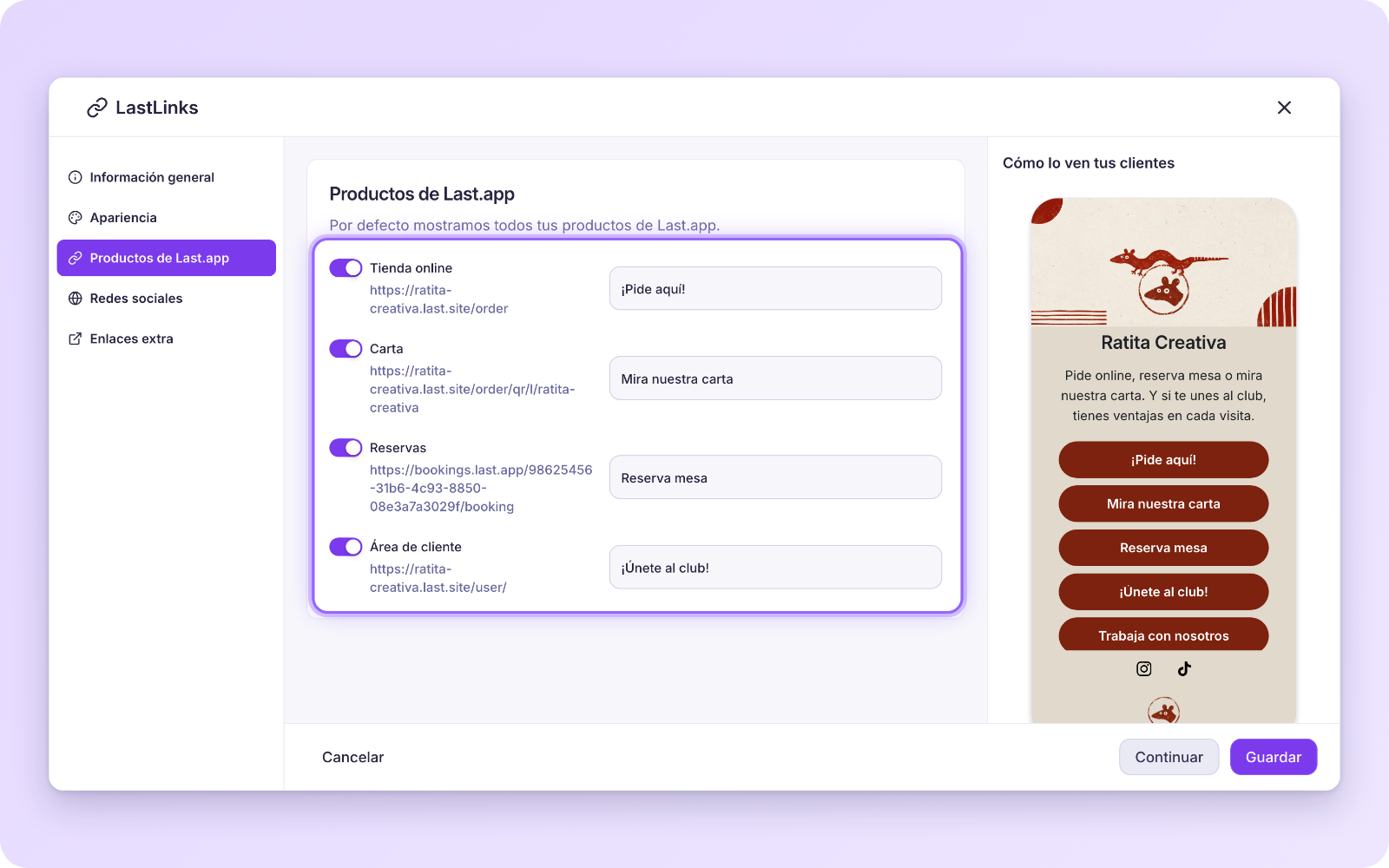
Only products that are active for your brand appear. If you don't use the Last.app online shop, for example, the ordering button isn't added.
Social media and any other link
Your social media icons sit below the buttons: WhatsApp, Instagram, TikTok and the rest of the usual platforms. If you've already saved them in your brand settings, they fill in automatically. In Extra Links you can add as many as you need, with whatever button text you like, including links to other tools: a wine list as a PDF, your daily set menu, your Google reviews or your jobs page.
How do you publish it?
When you finish the wizard, choose Save as draft or Save and publish. To share it, your page needs a .last.site address. LastAdmin suggests one based on your brand name, and you can create it in one click. Once the page is live, you'll see its link next to the preview, with one button to copy it and another to open it.

Any changes you make later in LastAdmin show up on the public page instantly, so you never have to share the link again. If you ever unpublish it, LastAdmin warns you first that the link will stop working wherever you've posted it.
What your customers see
It's a lightweight web page built for mobile that loads quickly from an Instagram bio or a WhatsApp message. On desktop it appears inside a phone frame, with "Powered by Last.app" at the bottom. It's available in Spanish, Catalan, English and German.
There's one page per brand and location. If your brand has a single location, the link goes straight to its page. If it has several, customers first choose the location they want.
Which plans include LastLinks?
LastLinks isn't sold separately: it comes included with the paid plan of any of these Last.app products, and having just one is enough. That means any Online Shop plan, any Bookings plan or the QR Order & Pay plan, the one for QR ordering. The menu-only QR and the free loyalty features, with their points and promotions, don't include it.
Can't see LastLinks in the menu?
LastLinks is set up per location, not in the organisation view. If you can't see it in the Marketing menu, make sure you've selected a location in the selector at the top left. If it still doesn't appear, check your plan: without one of the plans that include it, LastLinks doesn't show in the menu.
See you in the next update.